
Locked out?
If you or one of your team members is trying to log into a company Google Workspace account and gets stopped by a red error message reading, "Your sign-in settings don't meet your organisation's 2-Step Verification policy," you have hit a digital brick wall.
Don't stress! The account hasn't been hacked, and the password isn't necessarily wrong. This is a strict security feature doing exactly what it was designed to do.
Using a personal Google account? If nobody manages your account for you - no employer, school or organisation - this isn't your error and the fix is different. Go to Locked out of your Google account? Fix the 2FA error in minutes instead.
As a Google Workspace Reseller and Support Provider, the team at Online is Easy deals with this specific lockout constantly. Here is a simple explanation of why this happens and what you need to do to get back to work.
Why did this happen?
To keep your company's data safe from hackers, your organisation has a strict IT rule: Every single user must use 2-Step Verification (2SV/2FA) to log in.
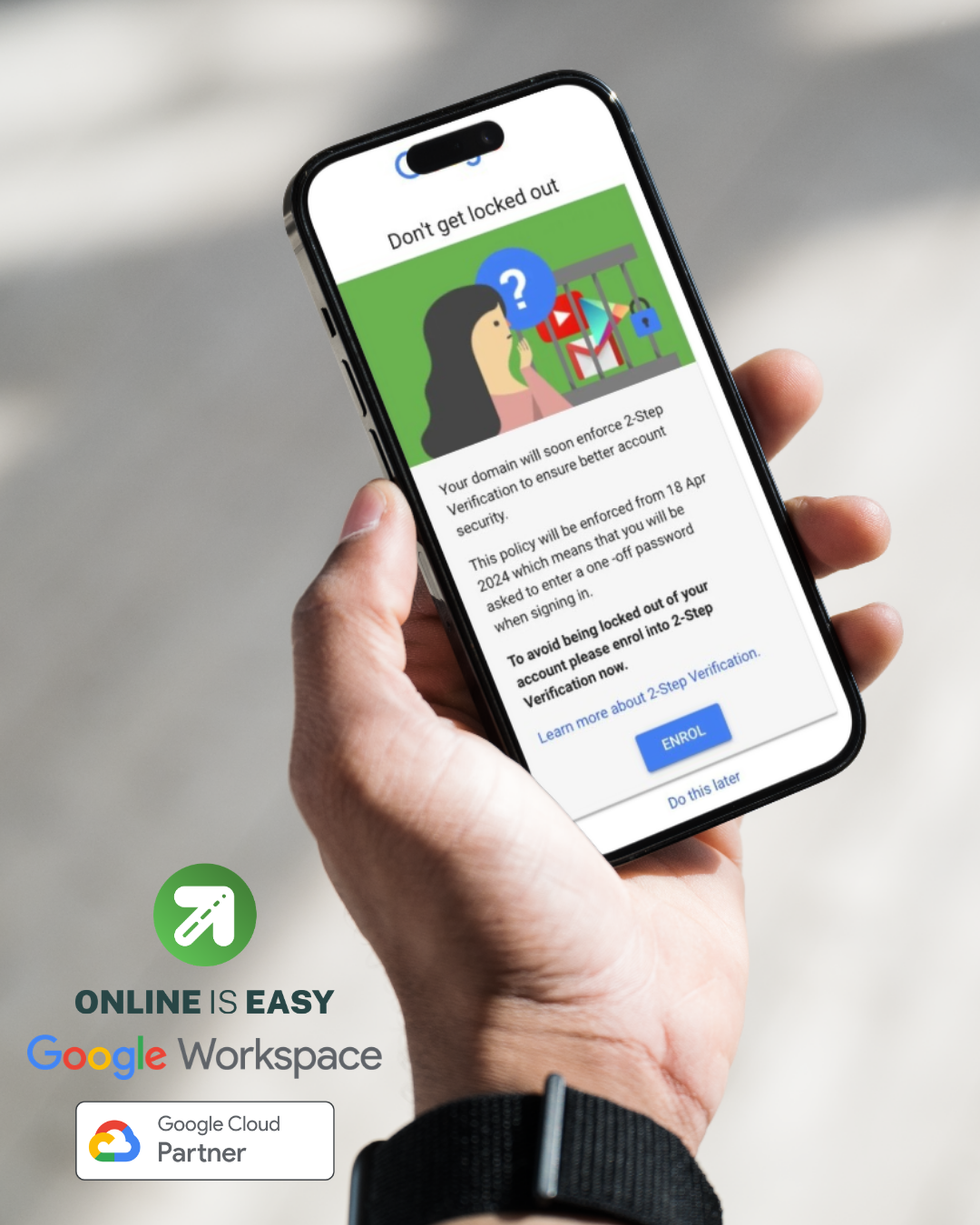
The Google prompt warning the user that their domain will soon enforce 2-Step Verification and asking them to enrol.
When a new email account is created, Google usually provides a short grace period (like 1 to 2 weeks) for the employee to set up their mobile phone or an authenticator app.
If that deadline passes and the user hasn't set it up, Google’s security system automatically locks the door. Because the deadline has expired, you cannot bypass this error on your own. Even if you have the correct password or old backup codes, the system will not let you in.
How to get back into the account?
Step 1: Stop trying to log in and call your IT Support
Because this is a company-enforced security policy, you need an Administrator to unlock the door from the inside.
Contact your IT department, your manager, or your Managed Service Provider (like Online is Easy). Tell them: "I am locked out due to the 2-Step Verification policy and need a temporary bypass."
Step 2: Log in (and stay logged in!)
Your IT support team will go into the administrative backend and temporarily lift the restriction for your specific account. Once they tell you it is ready:
Log in using your normal email and password.
CRITICAL: Do not close your browser, turn off your phone, or log out! If you do, you will be locked out again immediately.
Step 3: Turn on 2-Step Verification immediately
Now that your IT team has temporarily let you past the blockade, you must set up your security settings so this doesn't happen again.
While still logged in, open a new tab and go directly to: myaccount.google.com/security.
Scroll down to the "How you sign in to Google" section.
Click on 2-Step Verification.
Follow the on-screen prompts to add your mobile phone number. You can choose to receive a text message (SMS) or a phone call with a code every time you log in.
Once your phone is successfully connected, tell your IT team you are finished. They will secure your account again, and you will be able to log in normally from now on!
Google Workspace Support:
If you are facing a frustrating IT lockout or other Google Workspace technical support issue in your Gmail account or small business, or maybe you want to ensure your company's Google Workspace is properly secured, we are here to help.
Book a support session with Anthony or his team to resolve your immediate issues and tap into our team's Certified Google Workspace administration expertise. We have the skills to manage your digital engine room so you can get back to business.
(When booking, please include the exact error message you are seeing so we can jump straight to a solution on our call. Please note: while initial discovery calls are completely free, hands-on technical support is a paid service. Full terms are available on the booking page.)
-
No. Once the enforcement deadline has passed, a standard user cannot bypass the 2FA error screen. You’ll need to contact your Google Workspace IT Administrator or IT Support team to temporarily disable the enforcement for your account.
-
You’re receiving this error because your company has (wisely) strictly enforced Two-Step Verification (or 2FA) for everyone, and your temporary grace period to set it up has expired. Google locks the account until an IT administrator intervenes.
-
Using a temporary code provided by your IT team does not turn 2 Step Verification "On" for your account. It only bypasses the prompt for that one session.
If you do not immediately go into your security settings and link your phone, you will receive the exact same lockout error the next time you try to sign in.
-
While Google Workspace is designed to be manageable for small businesses, constantly untangling security policies, organisational units, and bypass groups is incredibly time-consuming. You have to ask yourself: is playing IT support the best use of my time?
We offer a flexible small business approach to get you and your team out of the error screens. We can act as your dedicated Aussie IT partner and manage it all for you, or we can step in to do the initial security configuration and train you to confidently manage it yourself.
(If you want to understand exactly why getting these strict security policies right is so critical to your business, we highly recommend reading our guide on the realities of Business Email Compromise.)
-
As your local Australian Google Workspace reseller and support provider, Online is Easy manages your IT security, handles frustrating user lockouts, and keeps your business running smoothly so you don't have to stress.

Anthony Mayer, Digital Strategy Consultant & Founder, Online is Easy
Anthony Mayer established Online is Easy in 2014 to serve as an expert mentor and guide for Australian small businesses, community groups, and NFPs. Based in Gippsland, Victoria, he specialises in bringing human capability and emerging technology together through a practical, hands-on approach across Australia.
As a Google Cloud Partner, Authorised Google Workspace Reseller, and Squarespace Expert, Anthony ensures your business "engine room" is built to industry best-practice standards. He is also an Authorised MembershipWorks Developer and Squarespace Trainer, helping organisations streamline their digital workflows with clarity and good humour.
A pioneer in cloud-based workspaces, Anthony helps remote, rural and regional clients leverage AI tools, including Gemini for Google Workspace, Workspace Studio, Gemini App, and AI Studio to automate, enhance productivity, and scale operations. He combines over a decade of strategic leadership with technical expertise to help you secure your digital foundation and lead with confidence in the AI era.
